
E-file Instructions for registered approval authorities
- Key points before you start
- E-file process map
- Instructions for appeals received through e-file
- Instructions for appeals received on paper or via email
- Grouping related appeals
- Handling ineligible or withdrawn appeals
- Accessing the consolidated municipal record
- Instructions for level-1 administrators: managing staff access to e-file
- Technical Notes
- Resources/Glossary/FAQs
Key points before you start

Ensure you are properly registered to use e-file
As an approval authority, you should primarily be using these tabs to file cases with the OLT:
-
- Approval Authority Dashboard
- New Case
- Case Parties
- Approval Authority Cases
If you are not seeing these tabs in e-file, you are not signed in as an approval authority and need to:
- Review the approval authority registration instructions or
- Contact the Tribunal at OLT_efile_admin@ontario.ca
You do not need to review and forward the appeal to the OLT the same day it is filed.
Refer to the applicable legislation to determine the specific timeframe you have after the appeal deadline to submit the case to OLT. For example, some legislation may allow up to 15-20 days.
You may receive a mix of e-filed, emailed and paper-based appeals for the same matter over the course of the appeal filing period.
Depending on whether you deal with the emailed, paper or e-filed appeal(s) first, the e-file portal allows flexibility in how you package these mixed formats into a case package. However, it is easier to start packaging into a case by starting with e-filed appeals, as there is less information for you to enter manually.
- If you begin creating the case package from an e-filed appeal, follow these steps to add an appeal received by paper/email.
- If you begin creating the case package from a paper/emailed appeal,
follow these steps
- For a one-page overview of how to handle each format (e-filed, email, or paper), see the Quick Start Guide (PDF).
For related cases, you do not need to re-enter duplicate information
If you’ve received two or more appeals that are related but apply to different instruments (for example, one appeal on a Zoning By-law and another on an Official Plan), you’ll need to submit them as separate but related cases. To save time, you can use the Copy/Create Related Case feature in e-file. This allows you to copy most of the information from the first case into the second, so you don’t need to re-enter the same details across multiple screens. You’ll still be able to review and update the copied information to reflect the specifics of each case. See How to Copy and Create a Related Case.
Important: If you identify an appeal that was filed in error with your approval authority, please contact the appellant immediately to redirect them to the appropriate approval authority so they don’t miss the appeal filing deadline. You will also need to forward the appeal to the Ontario Land Tribunal (OLT) through e-file to be correctly disposed of by selecting “Validity Issue/Withdrawn” as the Review Status and “Incorrect Approval Authority” as the issue type when you review the appeal. See the section below on Handling ineligible or withdrawn appeals for more information.
E-file process map
Need a high-level view of the full e-file process?
- See the E-file Process Map (PDF) for a step-by-step overview of how appeals move through the portal.
- See the Quick Start Guide (PDF) for a one-page of how to handle appeals received in different formats (i.e., e-filed vs. email or paper).
Instructions for appeals received through e-file
Step 1: Access and review submitted appeals
When an appellant submits an appeal to your approval authority, the submitted appeal will appear in the e-file Approval Authority Dashboard under the heading "Appeals Pending Review”. See screenshot below: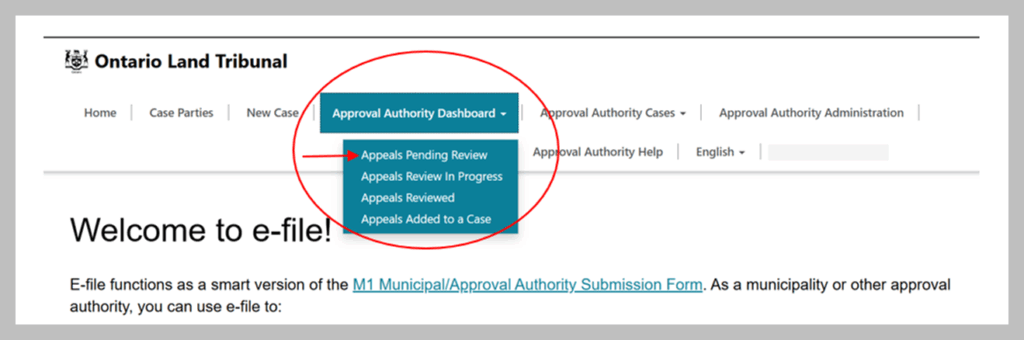
Select the appeal to verify the information submitted by clicking on the Appeal ID, as marked on the screenshot below.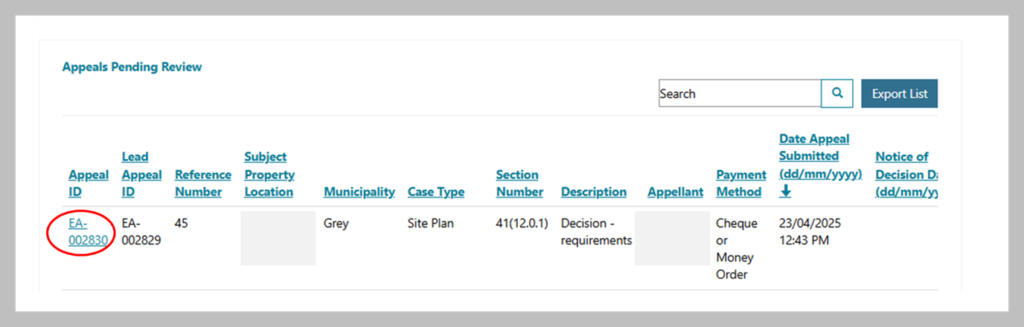
A new screen will appear entitled “Approval Authority Review of Appeal Submission”. To display the details of the submitted appeal, click Show More Details, as indicated in the screenshot below. This will expand the screen to show all the information that the appellant has submitted.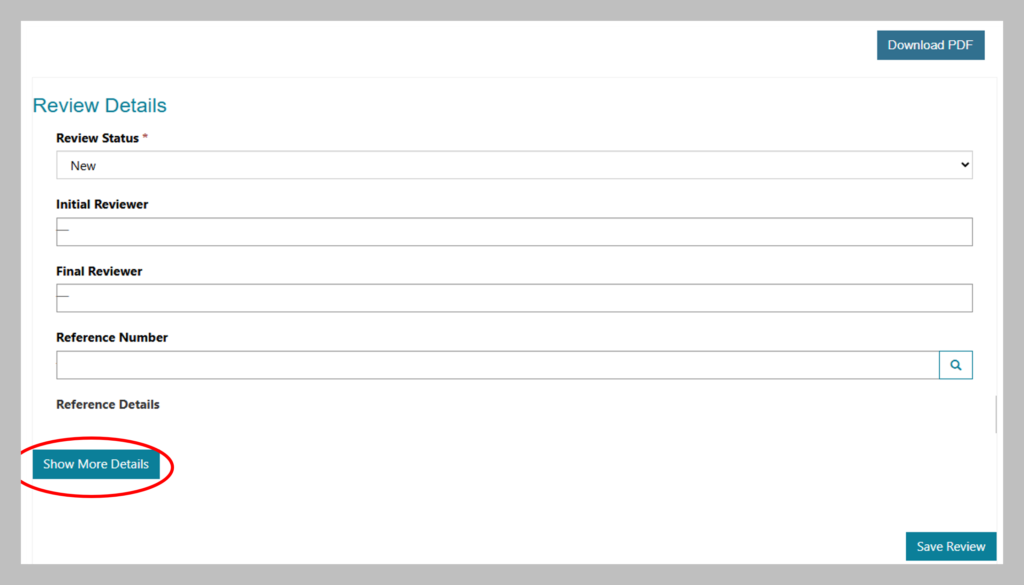
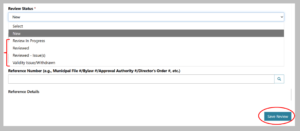
Change the status of the appeal to indicate you have finished your review by selecting “Reviewed”, “Reviewed – Issues” or “Validity Issue/Withdrawn” from the drop-down menu under Review Status. Note: if you select “Validity Issue/Withdrawn”, the appeal will be fast-tracked to the Tribunal, and you don’t need to create a full case package or municipal record. See the section below, Handling ineligible or withdrawn appeals for more information. Otherwise, if you’re not yet finished reviewing or are only conducting the initial review, you can select “Review in Progress.” Next click Save Review at the bottom of the screen. See screenshot below.
You will now be taken back to the “Appeals Pending Review” screen. If you have additional appeals to review, you can do so now.
Please note that after you’ve saved a review of an appeal, it will move to the “Appeals Reviewed” page in the Approval Authority Dashboard tab.
Step 2: Create a case package (the “record” to forward to OLT)
The next step is to create a case and add any required information about the case before forwarding to the OLT. A case package may contain one appeal or multiple related appeals depending how many appeals the approval authority receives on a matter.
Under the Approval Authority Dashboard, select “Appeals Reviewed” from the drop-down menu to see a list of all appeals that have been reviewed and saved by you or any other contacts within your approval authority from Step 1. See screenshot below.
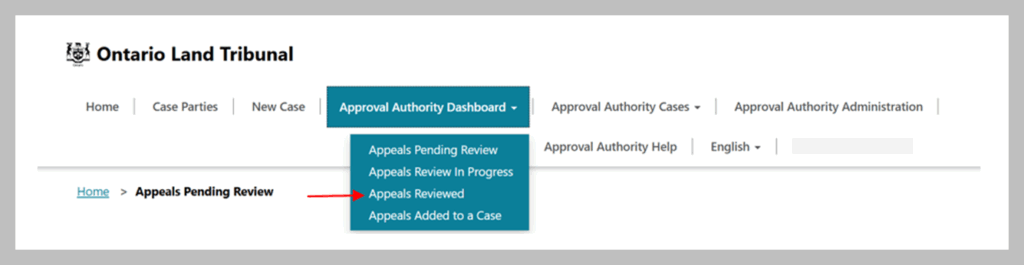
On the Appeals Reviewed page, proceed as follows:
If there is only one appeal on the matter
Select the single appeal and then click the Create Case button.
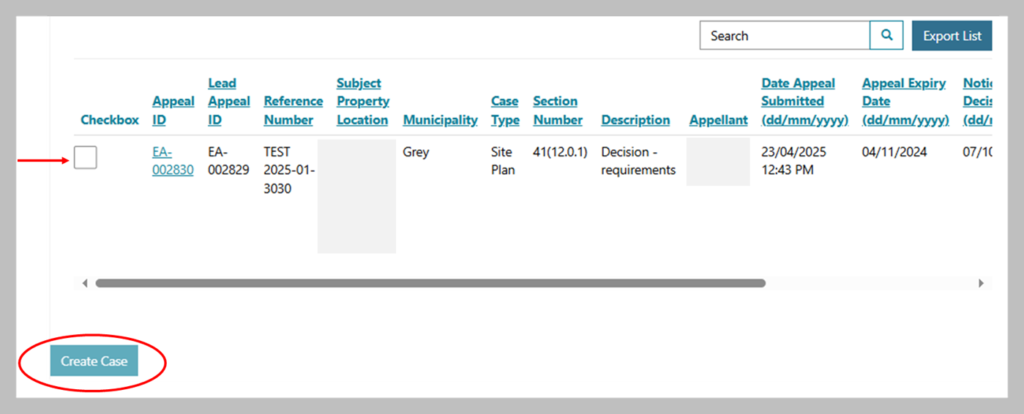
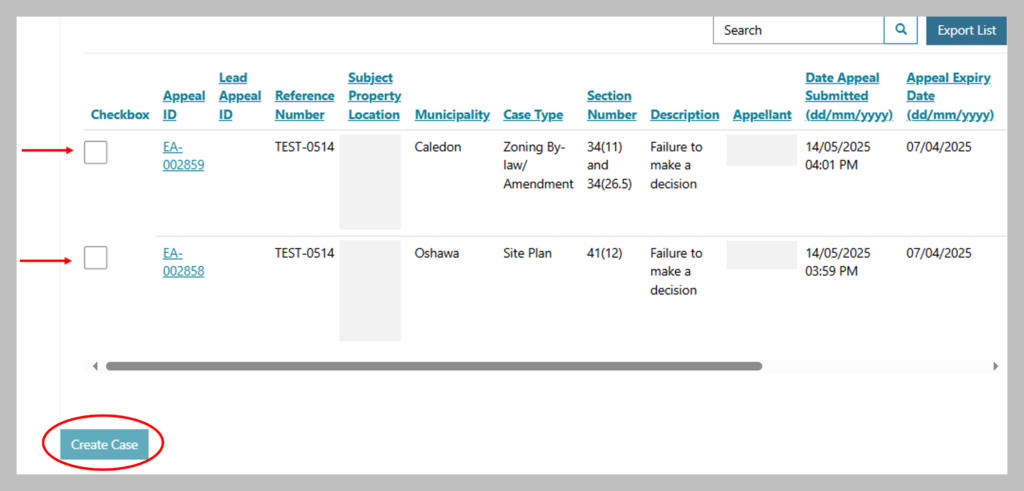
If there are two or more appeals
You will group appeals together if they have the same case type, section number and reference number, e.g., s. 17(24), OPA #42.
Select any appeals that you’d like to group together into a single case package. Note that the appeal you select first will be the appeal for which the details will be displayed during the case package creation flow.
Then click the Create Case button.
If there are paper-based or emailed appeals in addition to appeals that you’ve received through e-file
- Scan the documents and save to your computer.
- When you get to the section of the case submission process where you upload documents, select “Appeal” or "E-file Case Documents” and upload the electronic copy of the appeal form there, including any accompanying documents.
Step 3: Add information about the case that is required by OLT and upload documents
Follow the on-screen directions given in the portal to add information about the case. In creating a case package, e-file allows you to:
- Add the contact(s) from your office for the case.
- Add representative(s) for your approval authority, if applicable.
- Upload documents related to the case such as relevant checklist items and a cover letter.
- Provide specific information about the case (e.g., number of residential units proposed, whether the approval authority intends to appear before the Tribunal, the number and types of witnesses planned, whether appellants made their opinions on the matter known to council, etc.).
E-file will save all the information you’ve entered as you progress through the steps. If you need to stop and come back later, your saved draft will be available under “In Progress Cases” in the Approval Authority Cases tab.
If you receive an additional appeal (either on paper, through email or via e-file) after you’ve completed this step, you can still add the new appeal to your case. See Grouping Appeals into a Case for more information.
Step 4: Review and submit the case package to OLT
Once you have entered the required data and uploaded all checklist items, you will review the Summary, complete the declaration statement and select Submit. You will then receive an email confirming that you have successfully forwarded the case package to OLT. This email will be copied to all Level-1 users at your municipality to provide confirmation of successful filing of the case package.
Important: Do not submit the case package to OLT until the appeal deadline has expired in case more related appeals are filed that you need to add to the case package. Refer to the applicable legislation to determine the specific timeframe you have after the appeal deadline to submit the case to OLT. For example, some legislation may allow up to 15-20 days.
Step 5 (if applicable): Create Related Case
If you have a related case (for example, a Zoning By-law related to an Official Plan), you can copy information from the first case to avoid re-entering the same details and documents manually. This also creates an automatic relationship between the two cases. All data that you copy into the new case should be reviewed for accuracy and can be edited, if needed, to make it specific to the related case.
How to Copy and Create a Related Case:
1. After submitting your first case, there are two places where you can find the option to Copy/Create Related Case:
a. On the Submission Successful screen immediately after you submit the case (see screenshot below).
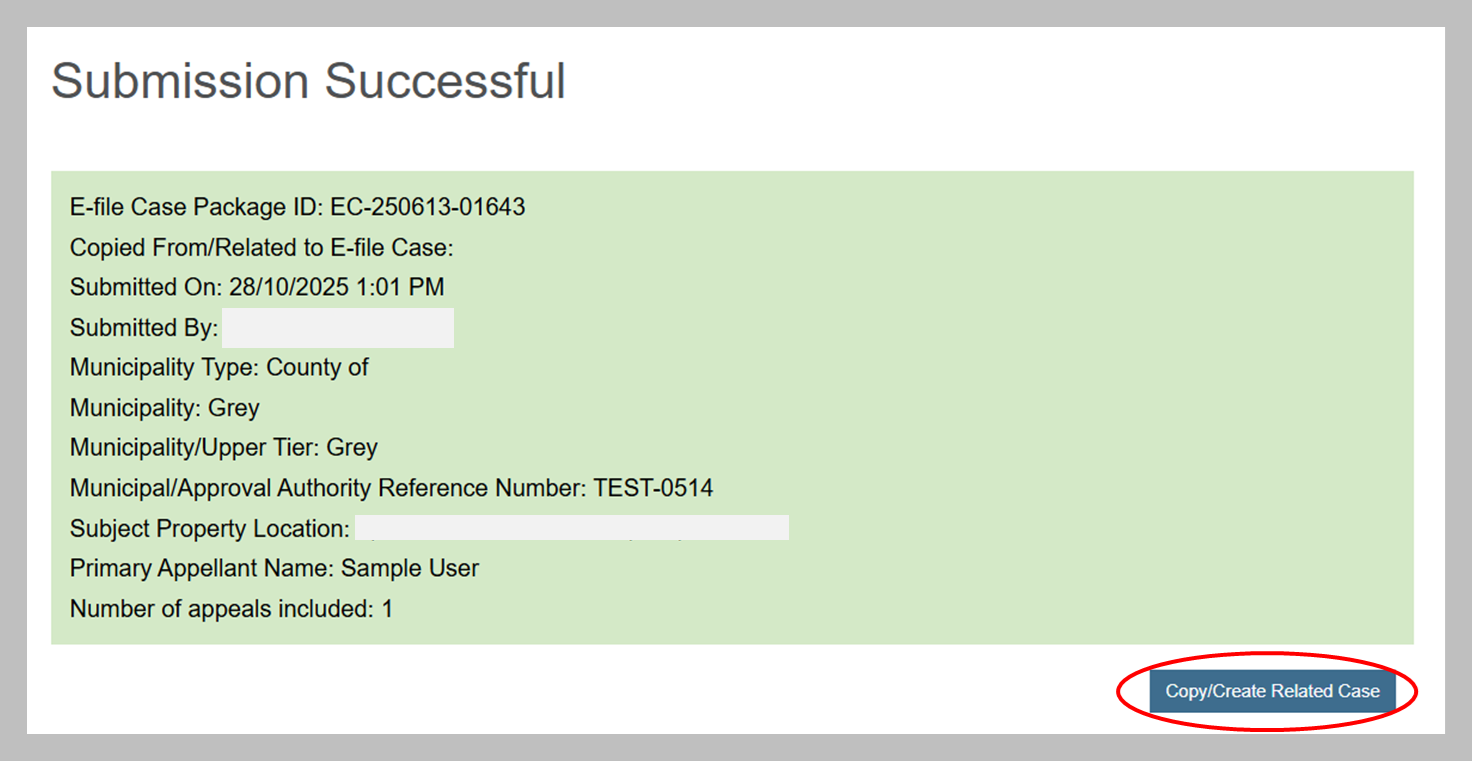
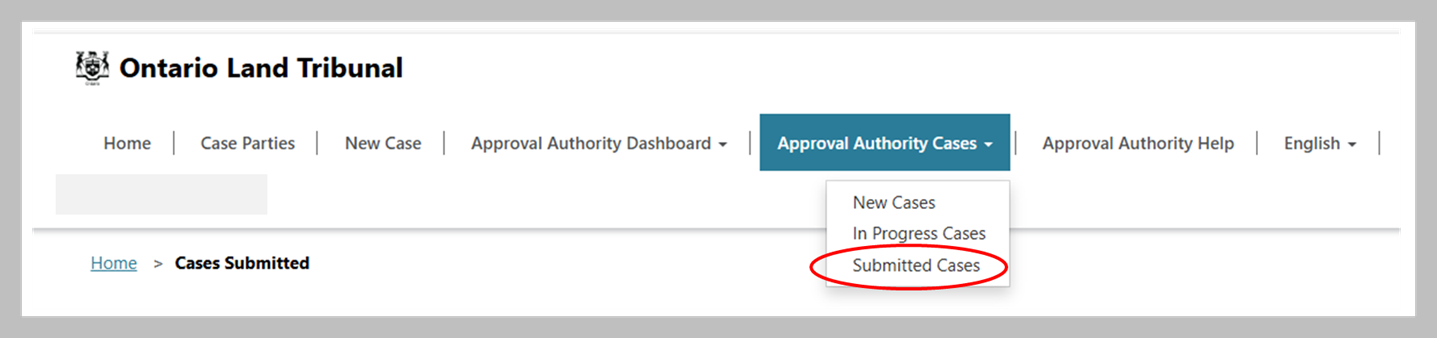
b. In the Approval Authority Cases tab, under the Submitted Cases list. See screenshot below.
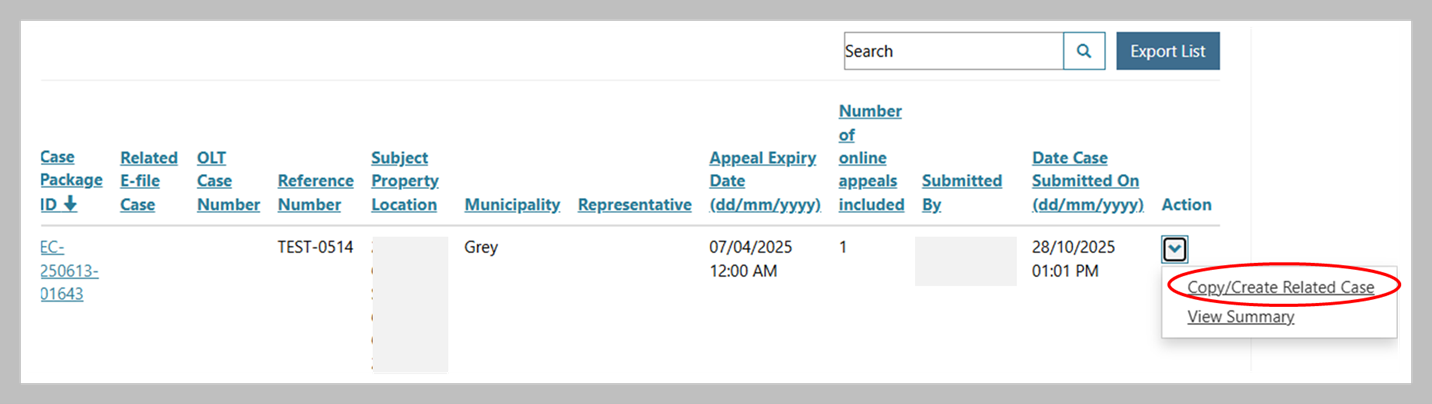
Find your case in the list, scroll to the right, and under the Action column, select Copy/Create Related Case. See screenshot below.
2. You will be guided through the creation of the new case beginning with identifying the Case Type. Most fields will be pre-filled based on the first case.
3. If applicable, on the Appeals page, add any additional e-filed appeals to the case package.
4. Review the copied information on each screen and update, if needed, to make sure it’s accurate for the new case.
5. When you reach the Related Case screen, the system will show the link between the two cases.
6. Continue to review the Summary, complete the Declaration at the end of the process, and submit to OLT. Note: the link between the cases will be reflected in OLT’s internal case management
Instructions for appeals received on paper or via email
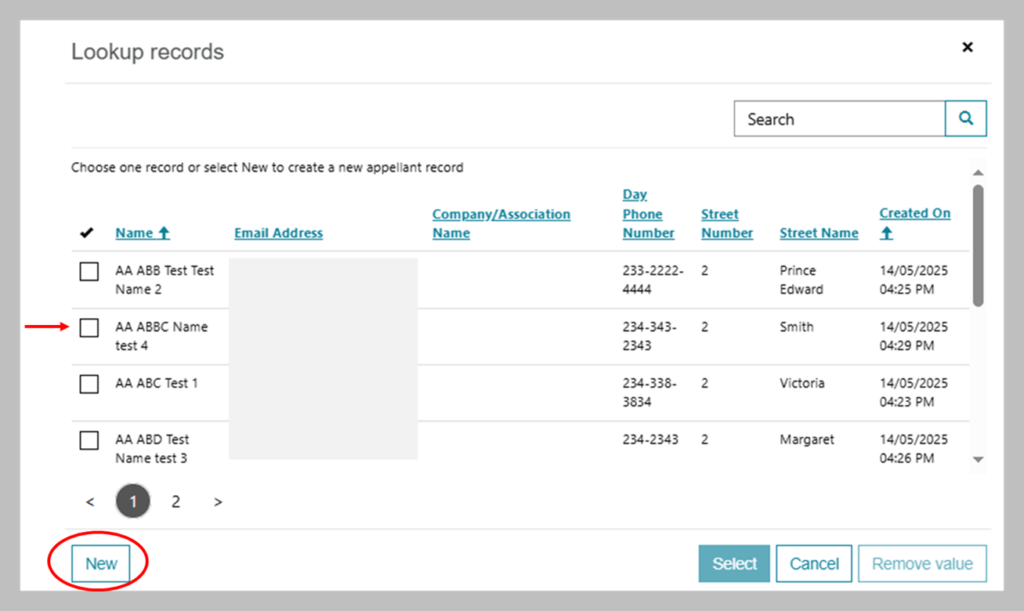
To assist the processing of your appeal, please name your saved document files using a descriptive naming convention, such as: I. the appellant's last name or corporation/organization name For example: “SmithAffidavit12-05-23”. Important: Do not use these special characters in naming your documents: \+ / : * ? . " " < >. You may upload Microsoft products (e.g., Word, Excel), PDFs, MP4s, zip files, JPEGs or other image files. Msg format is not supported. Please save any unsupported file types as PDFs before uploading to the e-file portal. There are two ways you can do this: Follow the on-screen directions given in the portal to add information about the case. When you get to the Appellant Information screen, click the magnifying glass icon in the Appellant search field (see screenshot below) A pop-up box will appear allowing you to select any appellants you’ve previously entered or you can select New to add a new appellant. See screenshot below. Once you have entered the required data and uploaded all checklist items, you will review the Summary, complete the declaration statement and select Submit. You will then receive an email confirming that you have successfully forwarded the case package to OLT. This email will be copied to all Level-1 users at your municipality to provide confirmation of successful filing of the case package. Important: Do not submit the case package to OLT until the appeal deadline has expired in case more related appeals are filed that you need to add to the case package. Refer to the applicable legislation to determine the specific timeframe you have after the appeal deadline to submit the case to OLT. For example, some legislation may allow up to 15-20 days. If you have a related case (for example, a Zoning By-law related to an Official Plan), you can copy information from the first case to avoid re-entering the same details and documents manually. This also creates an automatic relationship between the two cases. Note: You can still review and edit all data that you copy into the new case. See How to Copy and Create a Related Case. If the appellant has paid by cheque, you can mail or courier the appellant’s cheque to the OLT at 655 Bay Street, Suite 1500, Toronto, ON, M5G 1E5. Please include a brief note that identifies the e-file case number and appellant’s name. This will allow OLT staff to match the cheque to the correct appeal.
Step 1: Scan and save any documents received on paper
II. the document type
III. the date of submission (month/day/year)
Step 2: Enter the appeal in e-file
Option 1: As a new case - Use this method if this is the only appeal for a case that you’ve received.
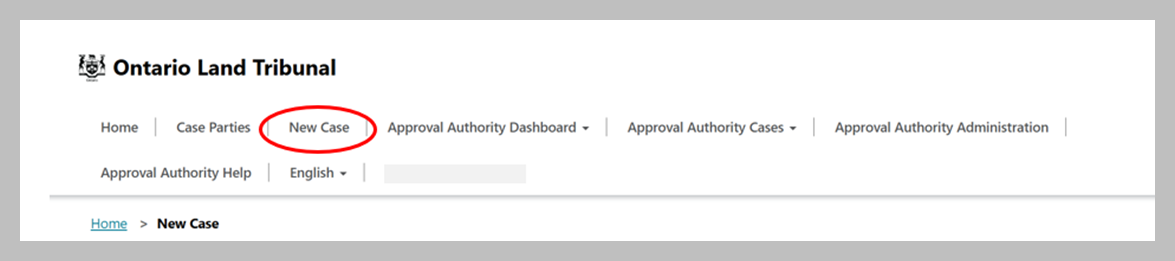

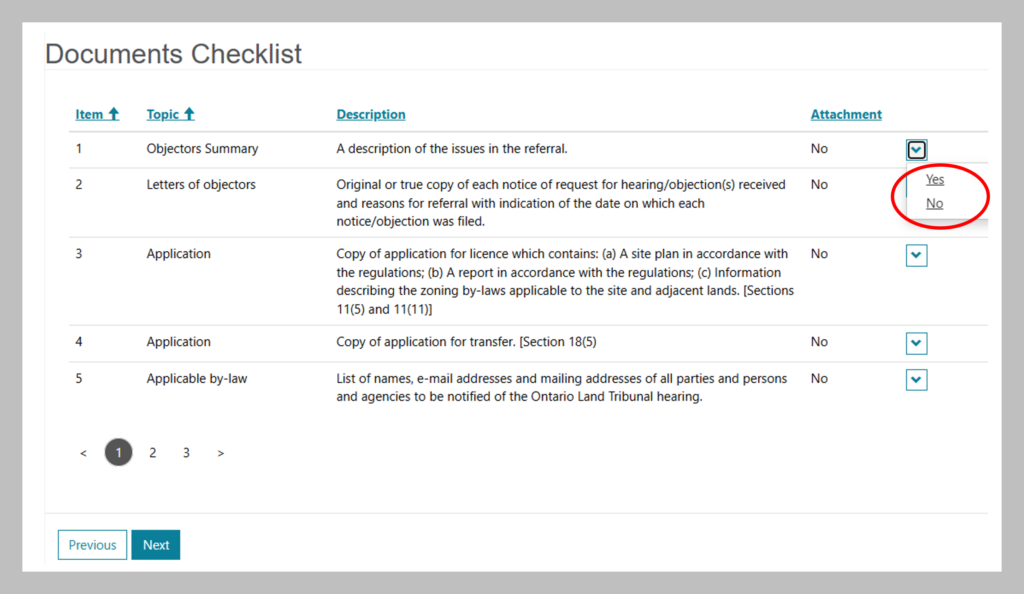
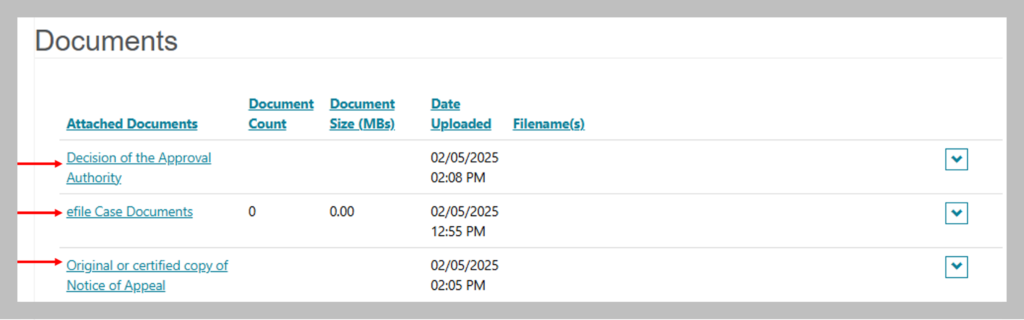
Create Related Case (if applicable)
Option 2: As an attachment to an in-process case package - Use this method if you receive an appeal that relates to a case package that you’ve already started
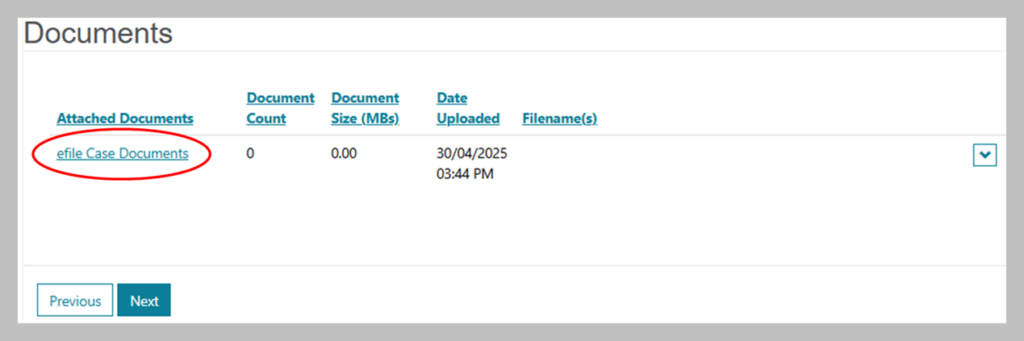
Step 3: Forward payment (if applicable)
Grouping related appeals
Depending where you are in the process, there are a few different ways you can group related appeals together into one case to submit to the OLT.
1. If you’re just starting to review the appeals and create the case:
2. If you’ve already begun to create a case but are still working on it when you receive an additional related appeal:
3. If you’ve already finished creating your case, but have not yet submitted it:
a.
Approval Authority Cases tab and select “In Progress Cases” to find your case
b.
c.
d.
e.
button.
f.
Handling ineligible or withdrawn appeals
Ineligible or withdrawn appeals can be fast-tracked in the e-file system, bypassing the need to create a full case package or municipal record. These appeals cannot be deleted from e-file by an approval authority and must still be forwarded to the OLT even if they are the only appeal. Use the steps below if an e-filed appeal is:
- received after the appeal deadline
- withdrawn by the appellant after submission
- filed by a third party with no appeal rights
- filed when no oral or written submission was made to council
- submitted to the incorrect approval authority
- deemed ineligible for some other reason
Note: You might like to fast-track the appeal if it was the only appeal you received for a case. However, if there are related appeals, you may want to add the appeal to a case package you’ve already started. In the latter case, you would choose “Reviewed – Issues” in the Review Status field instead of “Validity Issue/Withdrawn” and then follow the instructions for Grouping Related Appeals.
Follow these steps to fast-track the appeal to the OLT for review:
1.
2.
3.
4.
5.
Select Save Review. A few actions will now occur:
a.
b.
c.
d.
6.
Paper or email appeals
If the appeal was received on paper or by email, follow the instructions for processing paper/email appeals and include a cover letter explaining the issue before forwarding it to the Tribunal.
Accessing the consolidated municipal record
After you have submitted the case package to OLT, you can download the consolidated municipal record, if needed, for your internal records or sharing with others involved in the case. This record includes:
- All case information you entered in e-file
- All checklist attachments you uploaded
- The appellant’s consolidated appeal record including supporting attachments
To download the consolidated municipal record:
- Go to the Approval Authority Cases tab
- Select Submitted Cases
- Locate the relevant e-file case package IDin your list
- In the Action column, select View Summary
- On the Summary page, scroll down to the Documents section
- Select Consolidated E-File Municipal Record and download the zip file
Note: the zip file may be large and could take time to download.
Instructions for level-1 administrators: managing staff access to e-file
There are two levels of access to e-file available to registered approval authorities:
Level-1: Administrator
Municipal staff, such as the Clerk, can request from OLT to add them as Level-1 Administrators. See e-file registration instructions for more information. Level-1 access can only be granted by OLT staff after a verification process is completed. The Level-1 administrator(s) are OLT’s primary contact(s) for e-file. Level-1 administrators can grant or revoke access to other staff from their office.
Level-2: General/Regular user
Level-2 users are any staff in the approval authority office who have been granted access by their Level-1 administrator(s). They do not need approval from the OLT to access e-file. They have the same ability as Level-1 administrators to:
- review submitted appeals
- enter new appeals
- manage party and representative contacts
- create and submit case packages to the OLT
To manage staff access to e-file, Level-1 users can add or revoke level-2 users:
Adding level-2 users
To invite a staff person to become a level-2 user:
• go to the Approval Authority Administration tab (see screenshot below)

• click Create Invitation to enter the email address for the individual you wish to invite

They will receive an email from e-file with a link to register on the portal. As part of the registration process, they will need to sign-up for a My Ontario Account. Once they register, their name will appear under the Approval Authority Administration tab in the Active Users list.
Revoking level-2 users
You may need to remove users if they are leaving the organization or changing roles. Under the Approval Authority Administration tab, you will see a list of Active Users. Click on the down arrow next to the name of the user you’d like to remove and select “Remove Access”. The user will receive an email notification that their access has been removed.
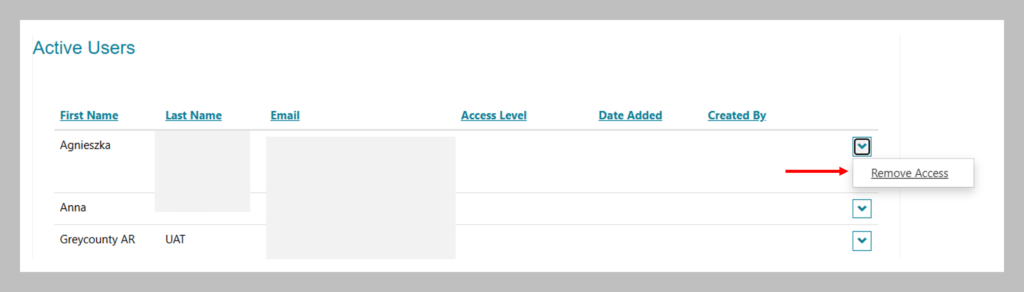
Updating Level-1 Administrator Access
If your Level-1 Administrator needs to be updated, please contact the Tribunal at olt_efile_admin@ontario.ca to request an update. Include the name and contact information of the outgoing administrator, and the name, title, and email of the new administrator. The Tribunal will update your portal access and confirm once the change is complete.
Technical/Troubleshooting notes
The e-file portal does not work well with older browsers. Please navigate using current browsers (e.g., Google Chrome, Firefox, Microsoft Edge). If you experience issues, try disabling pop-up blockers or clear your browser cache.
In the event of a system outage:
- download and complete the M1 Municipal/Approval Approval Authority Submission Form
- submit the form (and any supporting documents) directly to the Ontario Land Tribunal via email at OLT.Registrar@ontario.ca